Create an eFax account
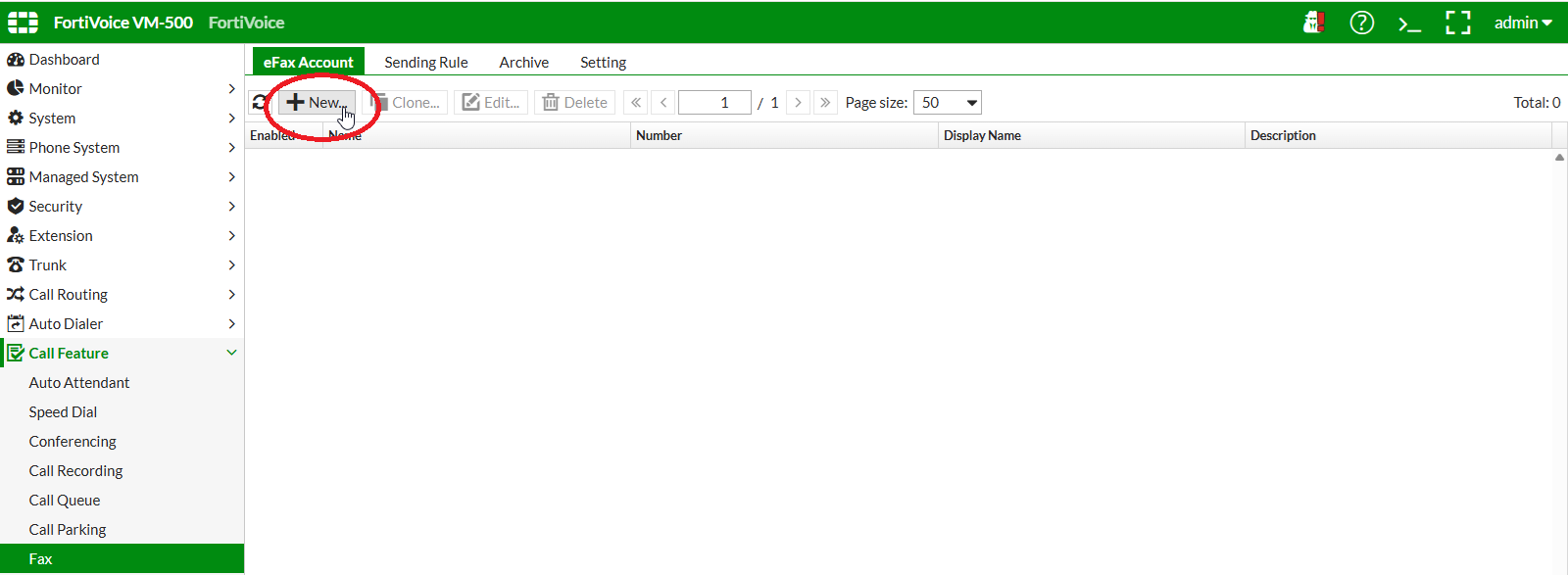
On the FortiVoice web administration page, select Call Feature and Fax on the left-hand menu.
Select the eFax Account tab to manage eFax accounts.
Click the New button to create a new eFax account.
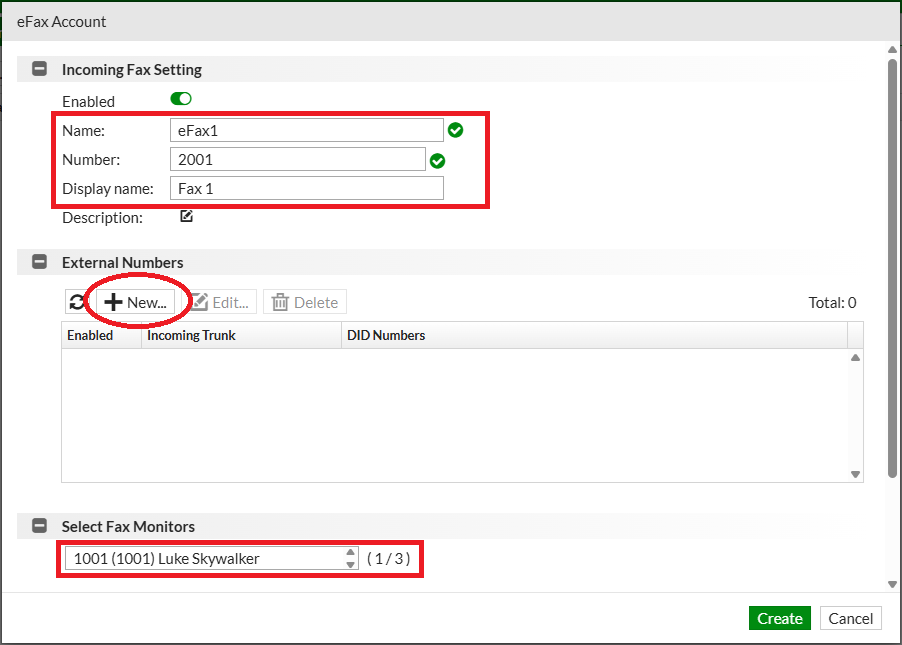
Complete the following fields to create the new eFax account:
- Name:
eFax1 - Number:
2001 - Display name:
Fax 1 - Select Fax Monitors: select
Extension 1001
In the External Numbers section, click the New button.
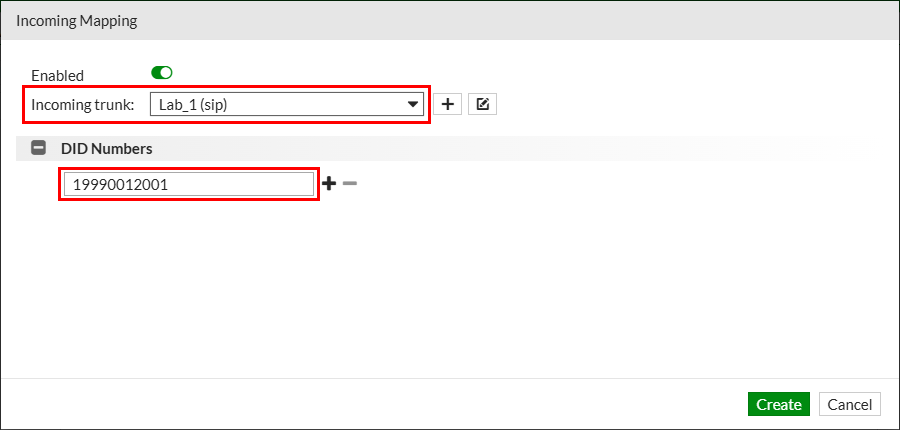
Complete the following fields to create the new eFax account external numbers:
- Incoming trunk: select
LAB_NN - DID Numbers: add
19990NN2001(replace NN with your assigned two-digit lab number)
Click the Create button to create the eFax account incoming mapping. Click the Create button to create the eFax account.
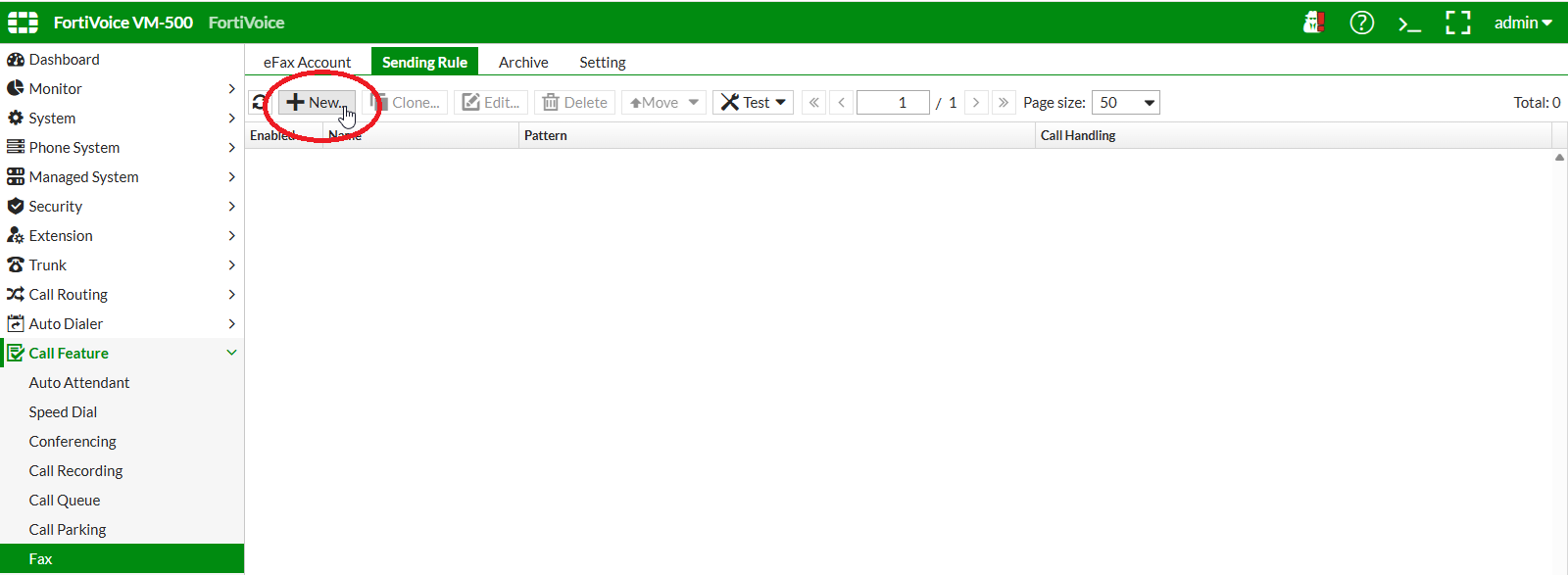
On the FortiVoice web administration page, select Call Feature and Fax on the left-hand menu.
Select the Sending Rules tab to manage eFax sending rules.
Click the New button to create a new eFax sending rule.
Complete the following fields to create the new eFax sending rule:
- Name:
eFaxRule1
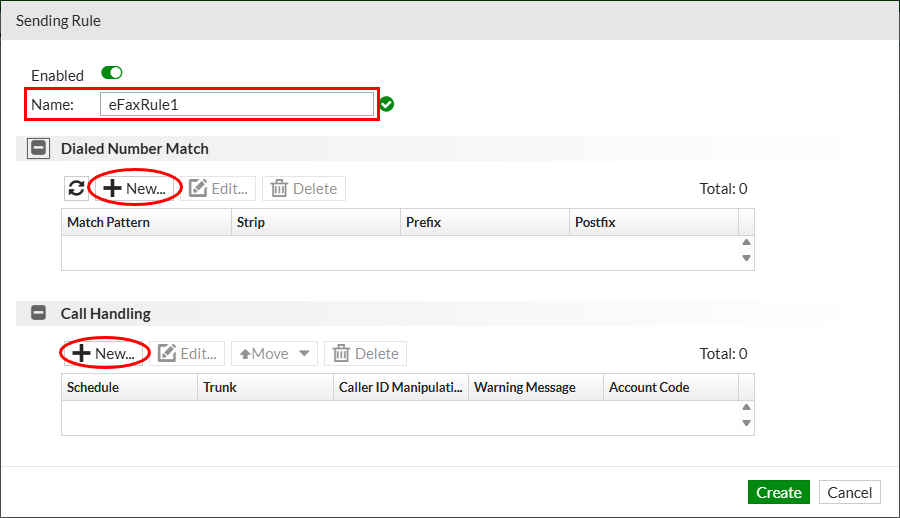
In the Dialed Number Match section, click the New button.
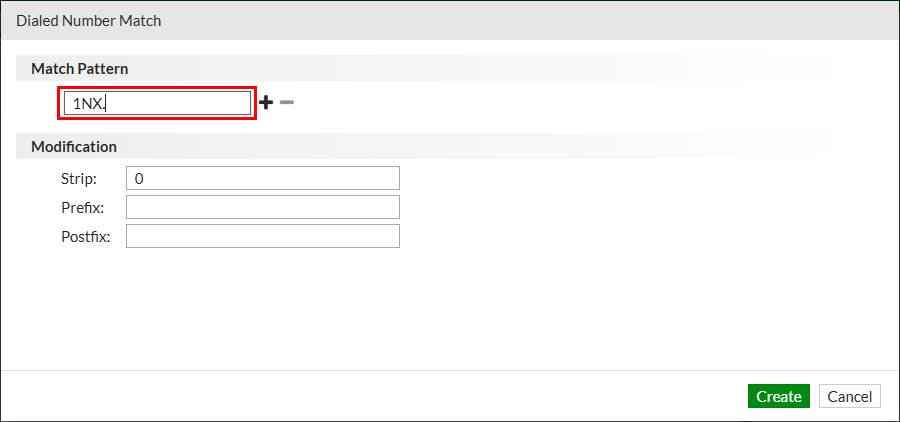
Complete the following fields to create the new eFax sending rule dialed number match:
- Match Pattern:
1NX.
Warning
In the match pattern 1NX., N is a dial-pattern symbol and must not be replaced with your lab number.
Click the Create button to create the eFax sending rule dialed number match.
In the Call Handling section, click the New button.
Complete the following fields to create the new eFax sending rule call handling:
- Outgoing trunk: select
LAB_NN
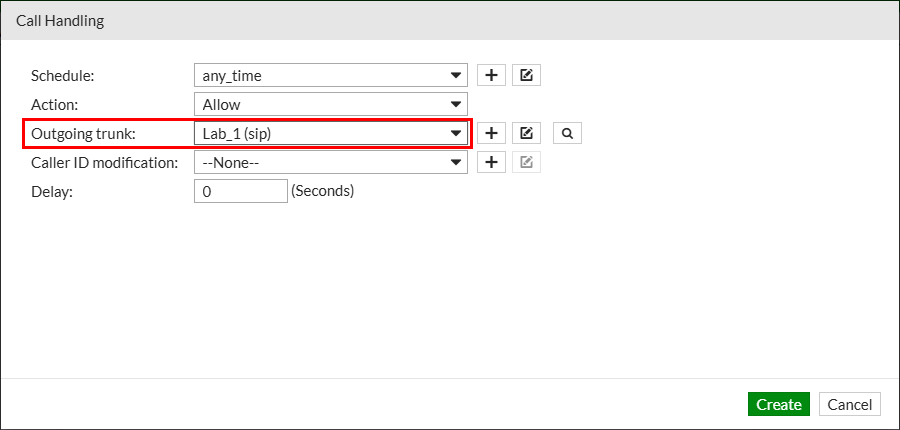
Click the Create button to create the eFax sending rule call handling.
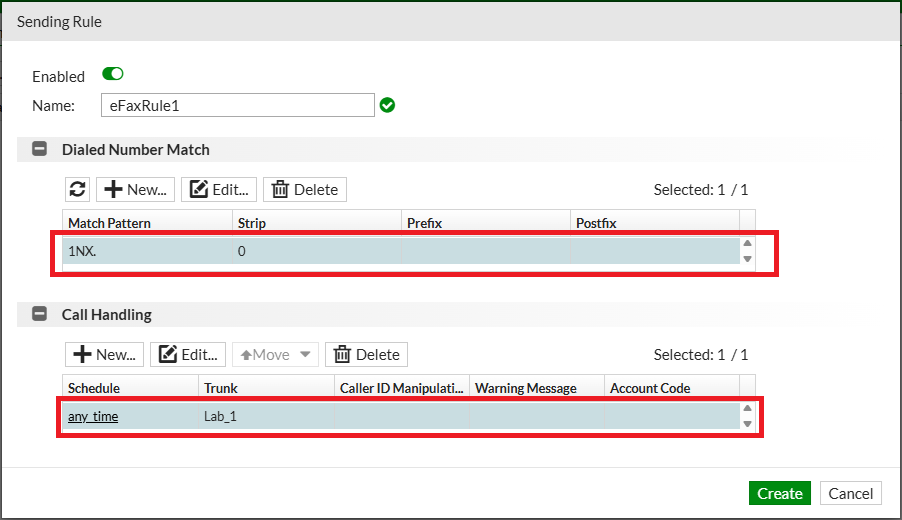
Click the Create button to create the eFax sending rule.