Configuring softphones
The FortiFone clients must be powered on before you can access them.
Within the training lab environment, right-click the Client 1 icon, select Power, and then choose Power On.
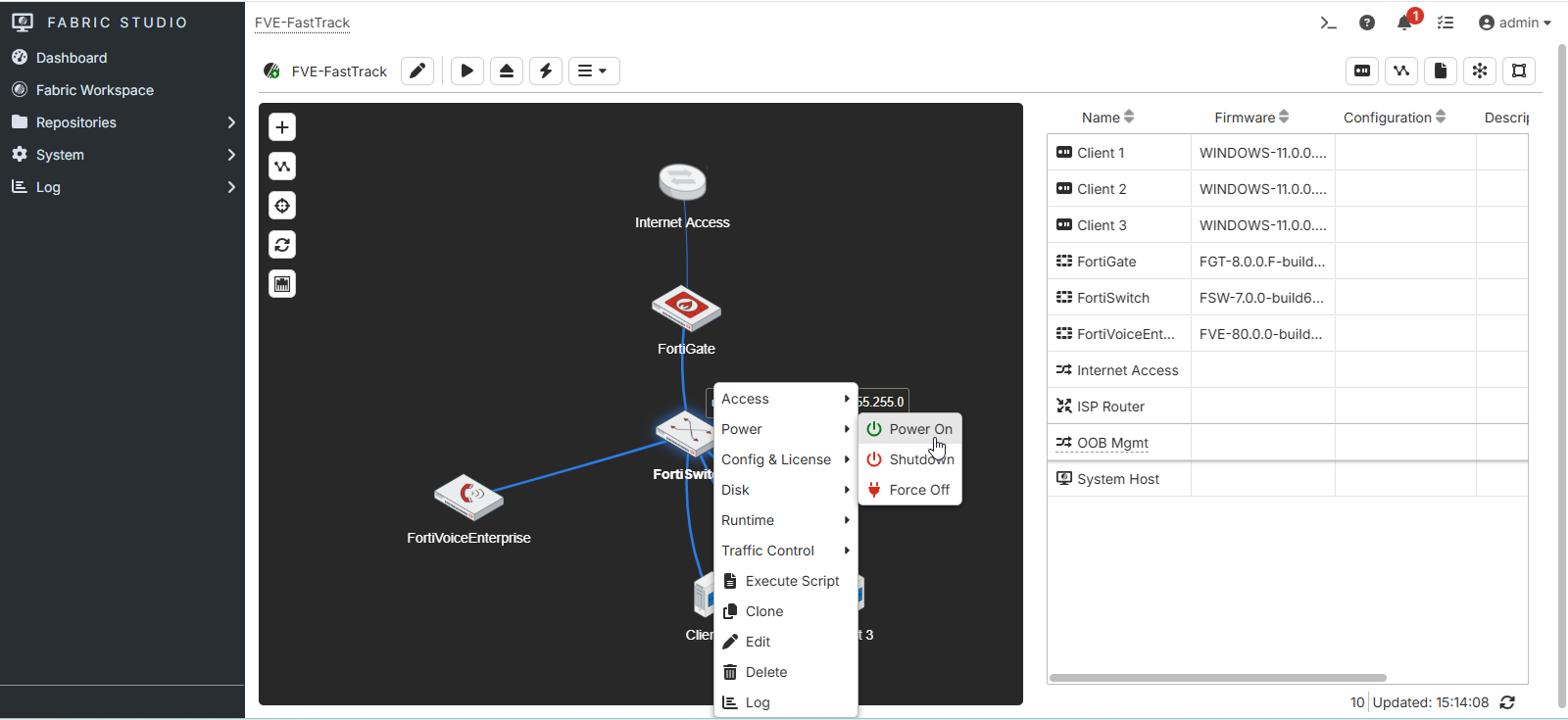
Wait approximately one minute for the FortiFone client to finish starting before continuing.
Within the training lab environment, right-click the Client 1 icon, select Access, and then choose Display (VNC).
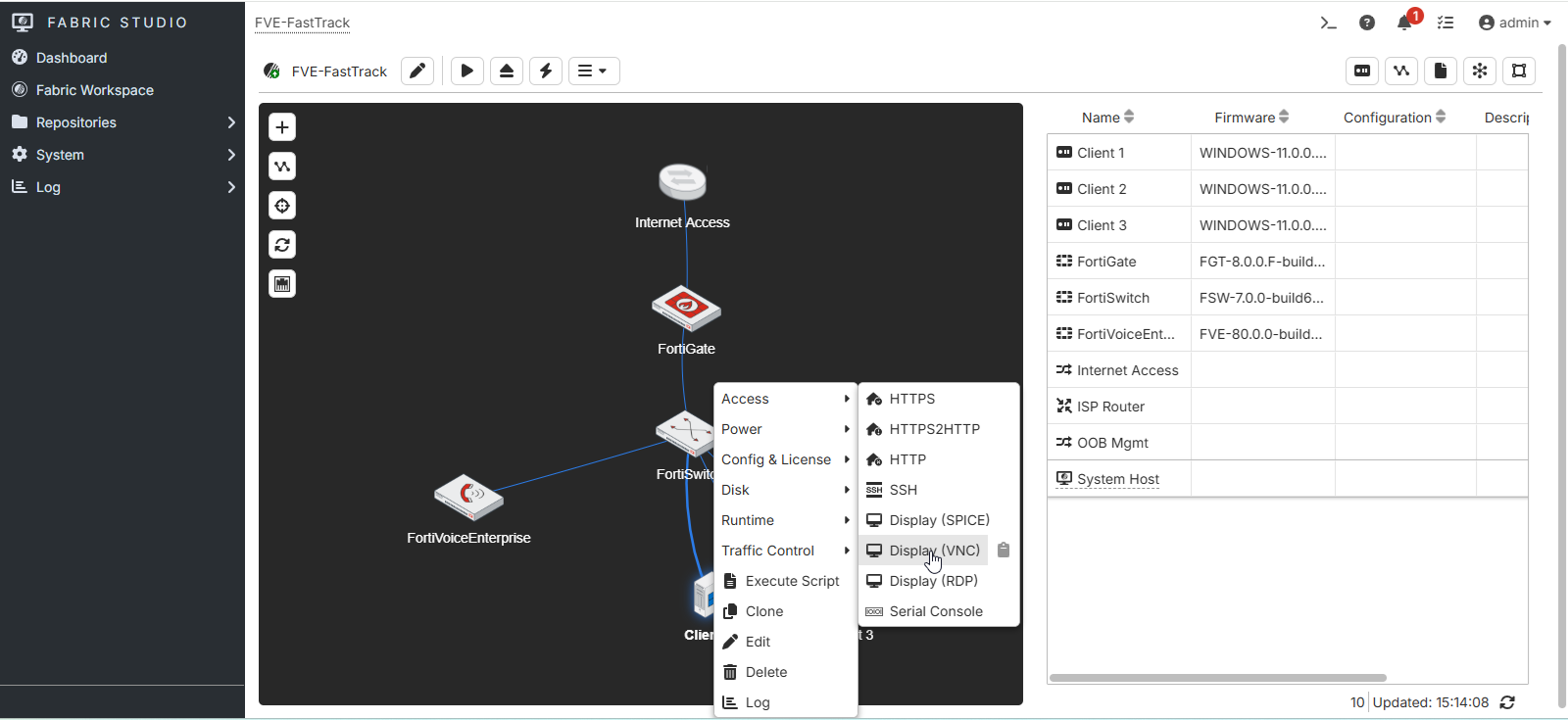
A new browser tab will open automatically. Switch to the newly opened tab to access the FortiFone client.
Double-click the FortiFone icon.
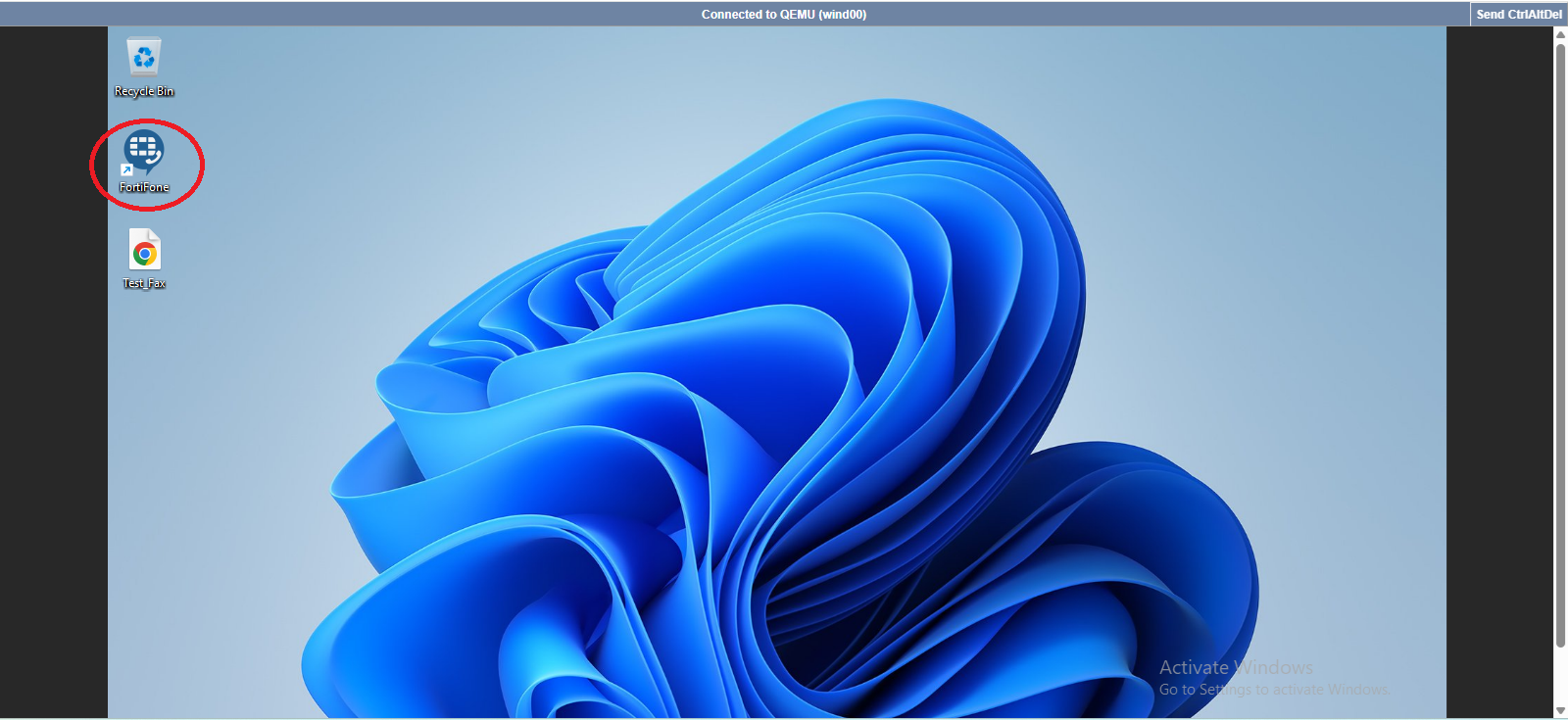
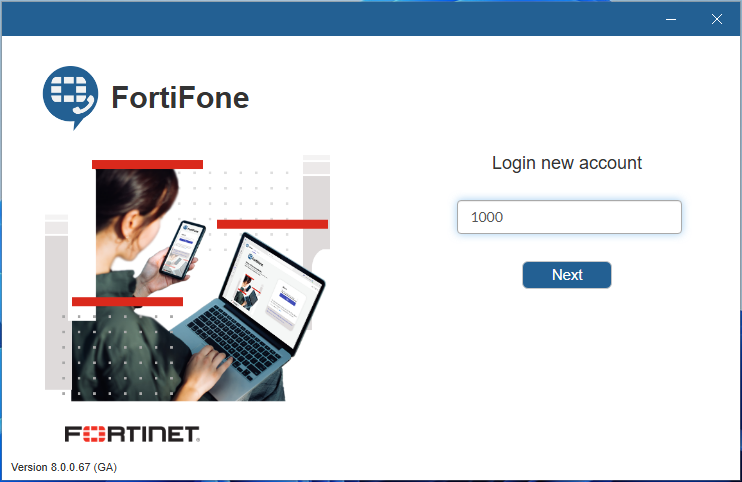
Enter the first extension number you created: 1000.
Click the Next button.
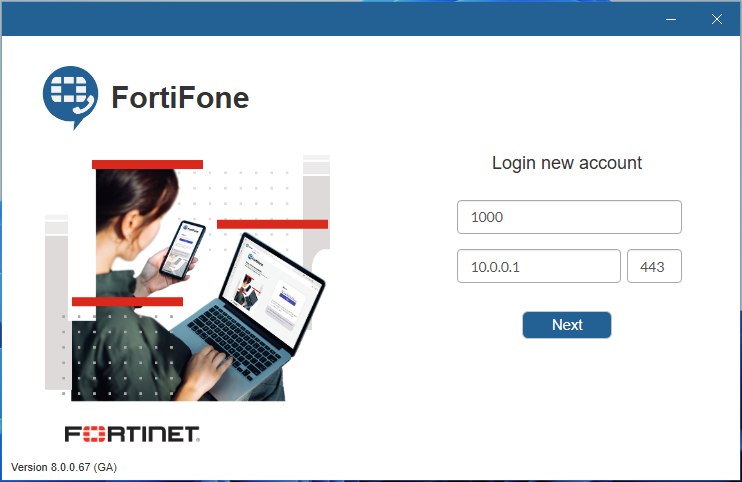
Enter 10.0.0.1 as the server IP address and 443 as the port number.
Click the Next button.
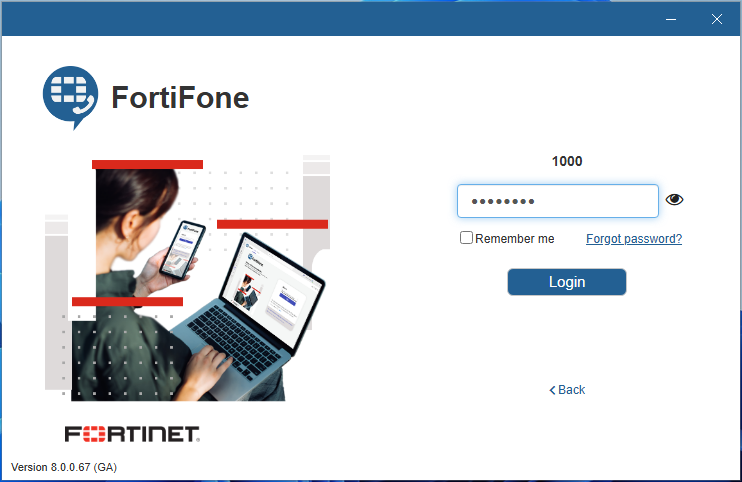
Enter fortinet as the password (as defined previously) and click the Login button.
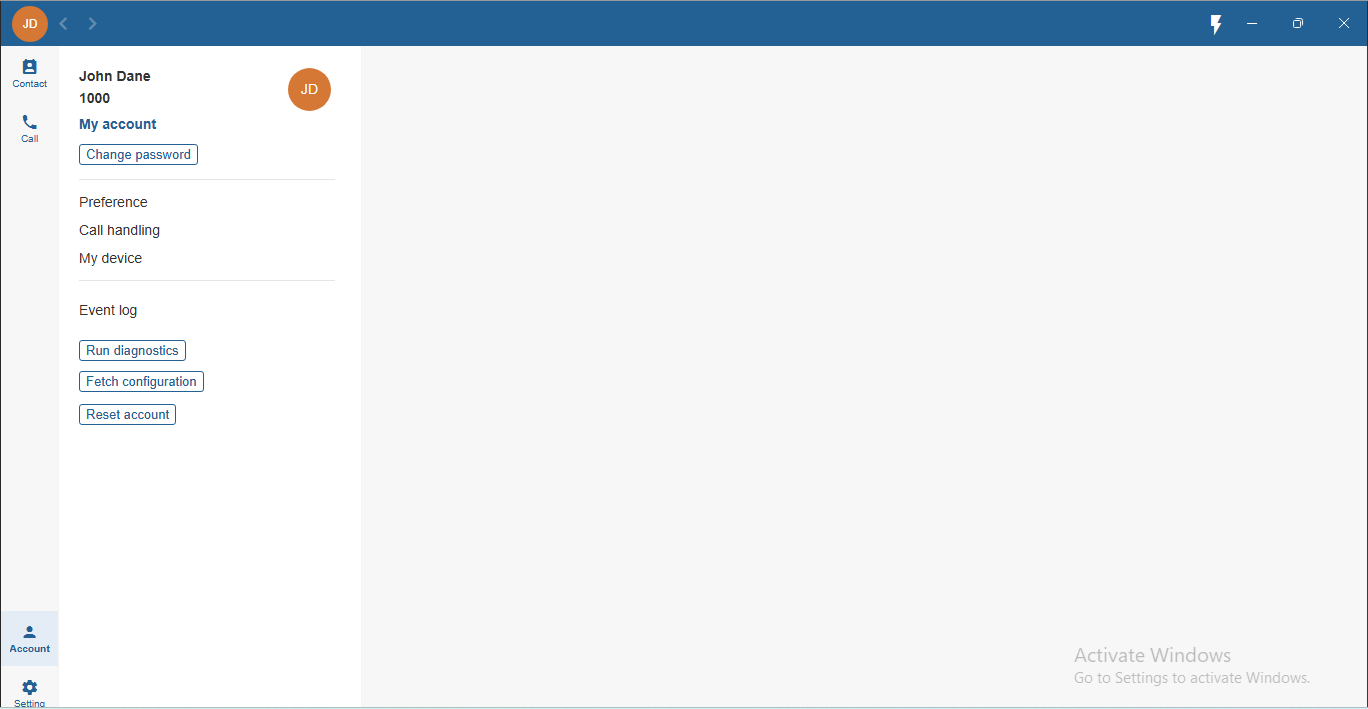
The softphone client is now registered for the first extension.
From the FortiVoice web administration page, select Extension and Extension on the left-hand menu.
The IP address of the softphone should be present, and the status should be green.

Repeat these steps to sign in with the other two extensions on Client 2 and Client 3.
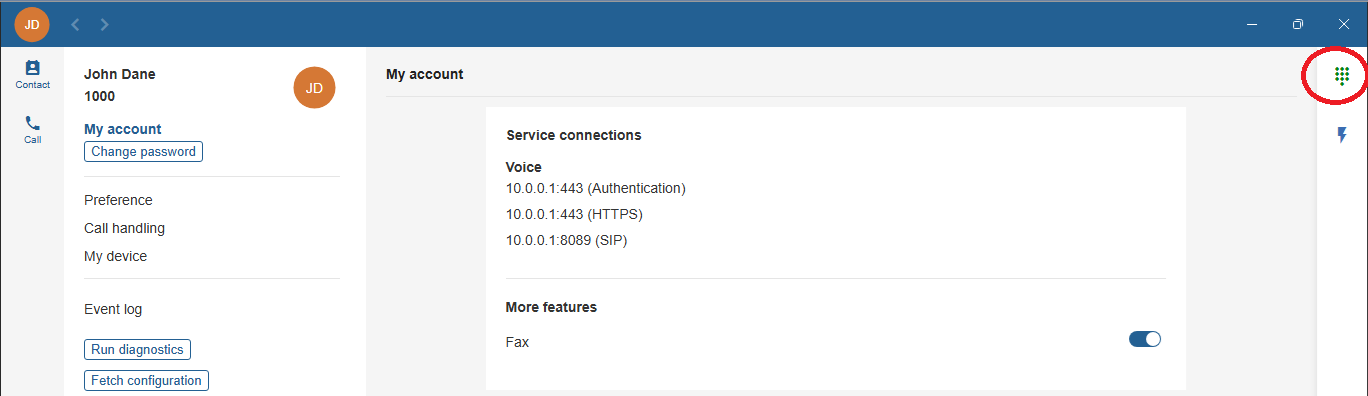
Place test calls between extensions. To display the dial pad, click the dial pad icon in the upper-right corner: