User privilege profiles
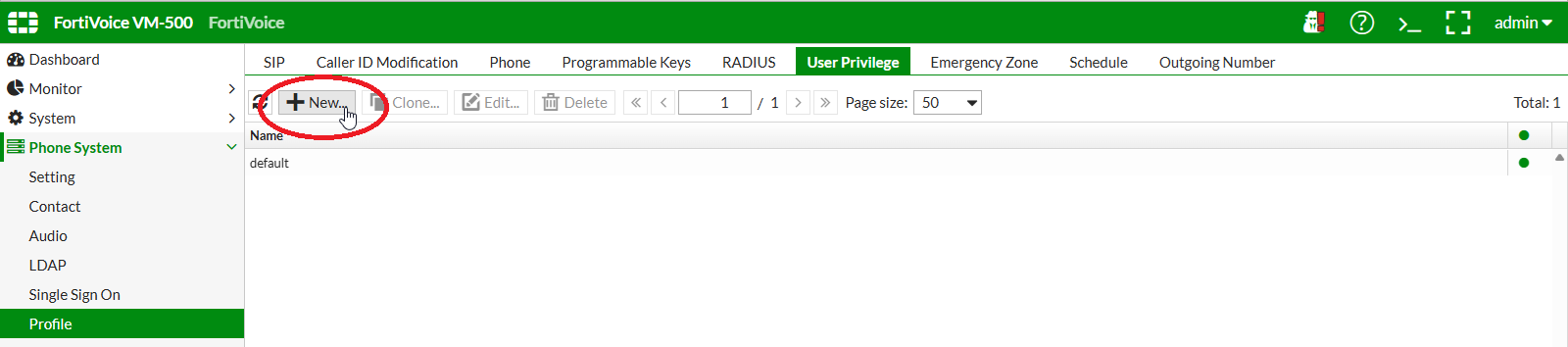
On the FortiVoice web administration page, select Phone System and Profile on the left-hand menu.
Select the User Privilege tab to manage user privilege profiles.
Click the New button to create a new user privilege profile.
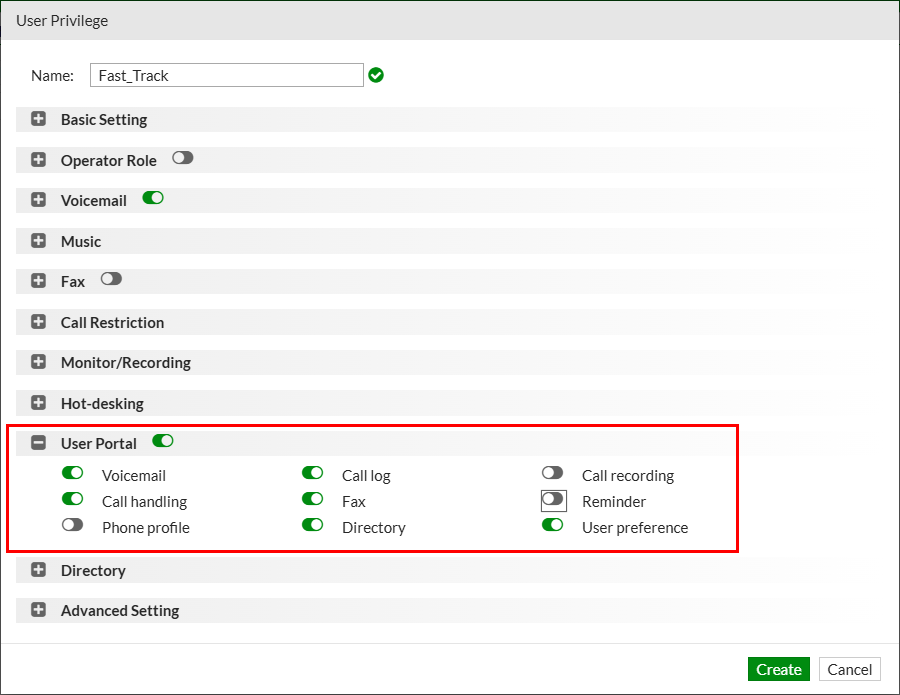
Complete the following fields to create the new user privilege profile:
- Name:
Fast_Track - User Portal: enabled
- Voicemail: enabled
- Call log: enabled
- Fax: enabled
- Call handling: enabled
- Directory: enabled
- User preferences: enabled
Click the Create button at the bottom of the page to create the new user privilege profile
Select Extension and Extension on the left-hand menu.
Select the IP Extension tab to manage extensions.
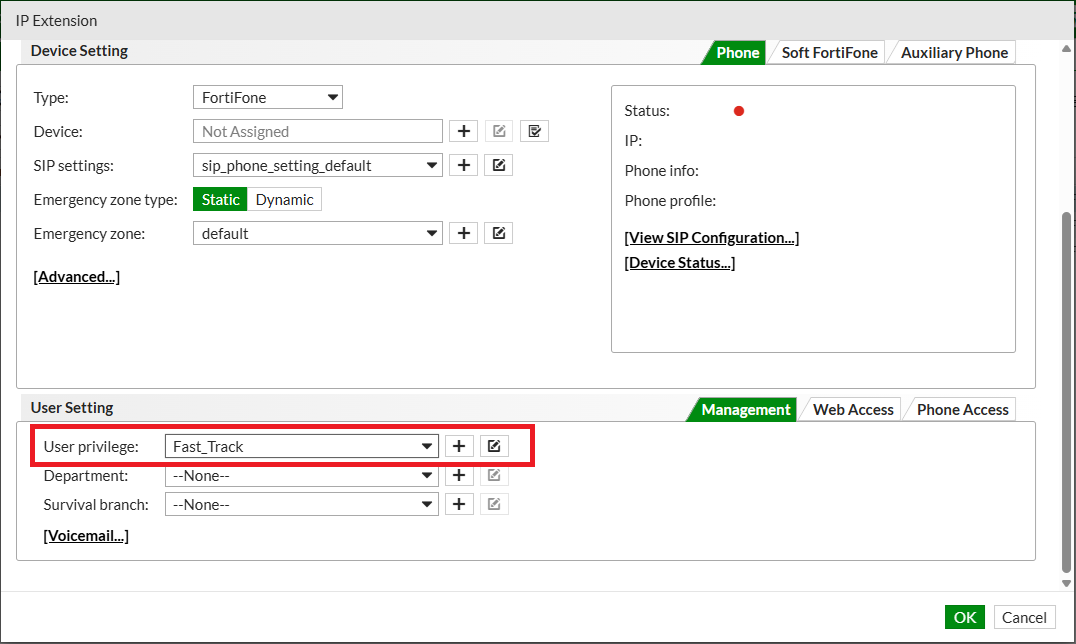
Select extension 1000 and click the Edit button.
Assign the previously created Fast_Track user privilege profile to the user and click the OK button to update the user.
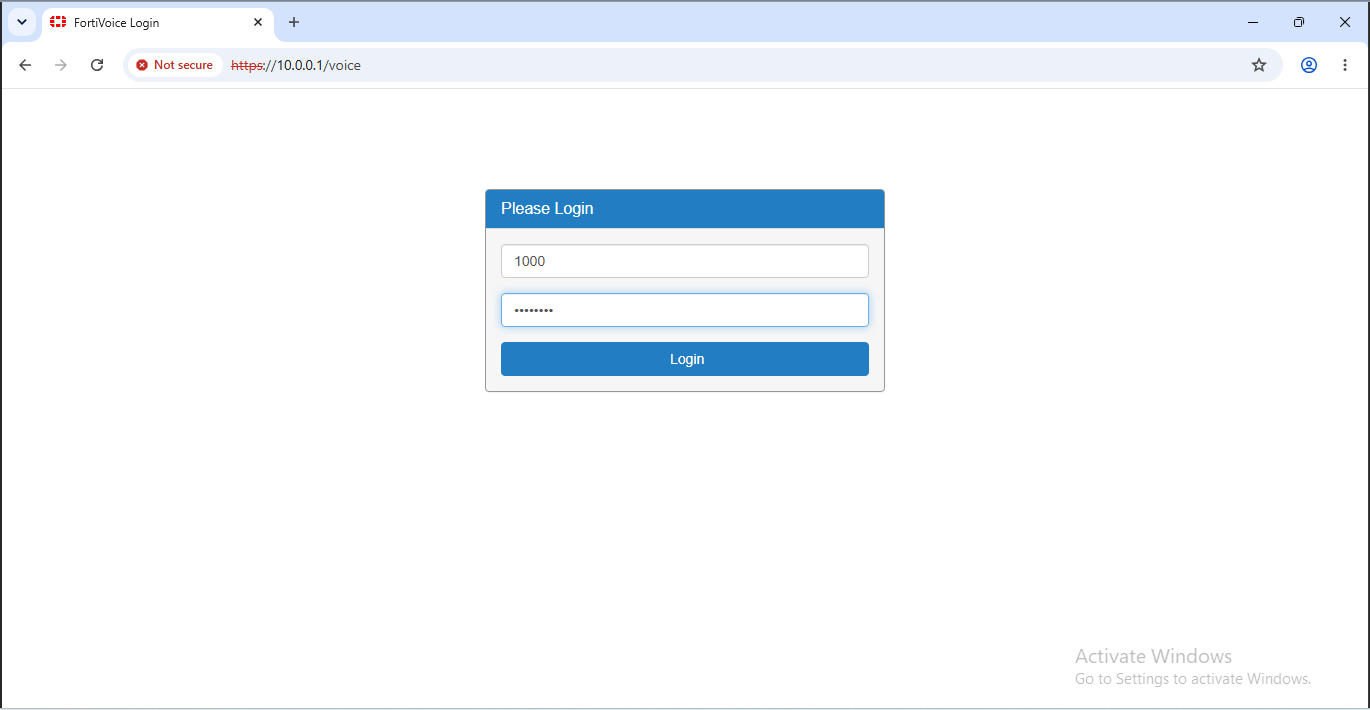
Using Client 1, open the URL https://10.0.0.1/voice from a web browser and authenticate on the FortiVoice user portal using the following credentials:
- Extension:
1000 - Password:
fortinet
Notice that extension 1000 has access only to the user portal features enabled in the Fast_Track user privilege profile.
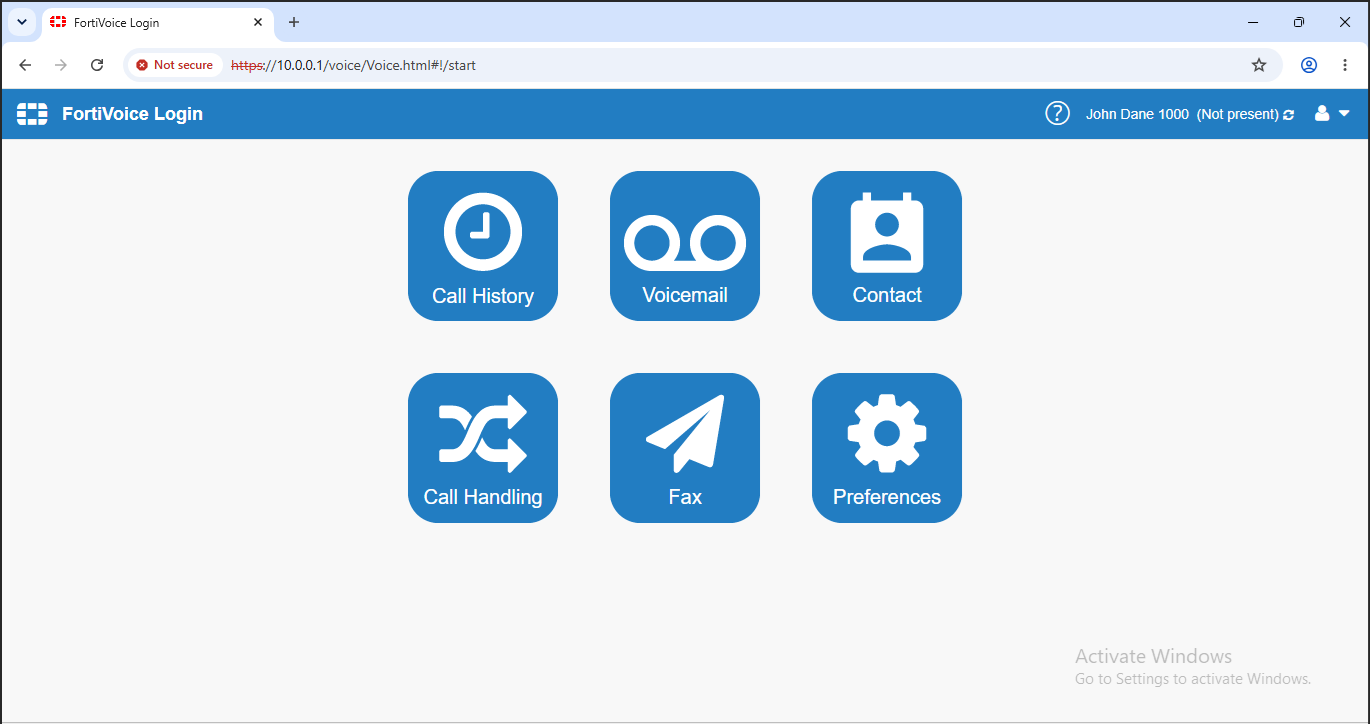
Log out from the FortiVoice user portal and log in using extension 1001 credentials:
- Extension:
1001 - Password:
fortinet
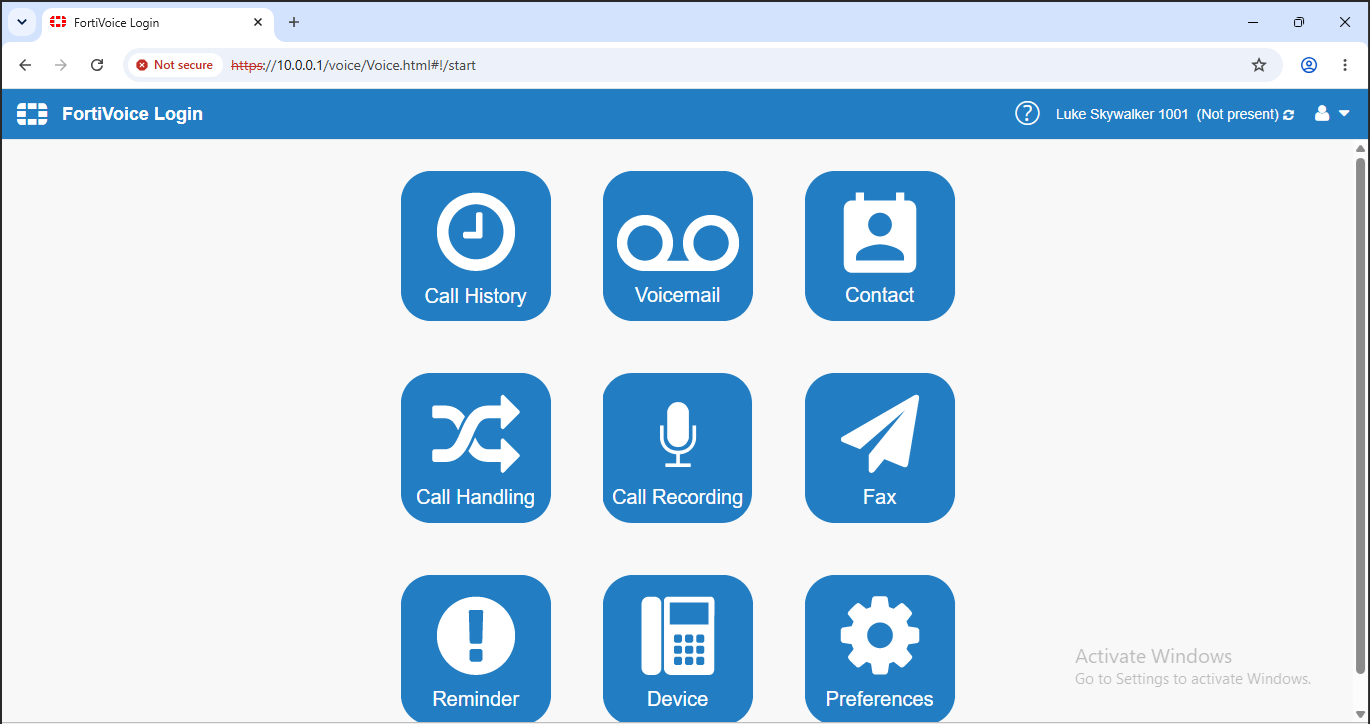
Compare the available user portal features with those available to extension 1000.